Showing posts with label Data Reader. Show all posts

Sunday, April 8, 2012

Typed vs. Untyped Datasets

In last few posts we discussed how you can use data adapter, datatables and datasets to fetch data from and save it to SQL Server. In those examples, we created untyped datasets. Untyped dataset is simply an in memory declaration of a dataset. It is a collection of datatables, which themselves are in memory declaration of datatables which are similar to database tables.

While it is possible to create constraints such as column type, relationship between columns, whether a column is nullable or not in a datatable declared in memory, but you have to write extra code for it. Contrast that with a typed dataset which inherits from dataset class and has an XML schema. This allows for you to define constraints and relationships on the design surface. Additionally, you can also drag tables from the database on the design surface and relationships/constraints of your database will automatically follow.

In this example, we will create a dataset using AdventureWorks database and then dragging the tables on the design surface. I am using VS 2010 for this project.

1. Create a sample test project.
2. From the top menu select Data > Add New Data Source and connect to the database you would like to use.
3. Select database and click on Next
4. Create a New Connection or select an existing connection. Here we will create a new connection
5. Define parameters and select your database.
6. Select one or more tables/views/stored procedures/function you would like to include in this dataset. Here we will select all tables.
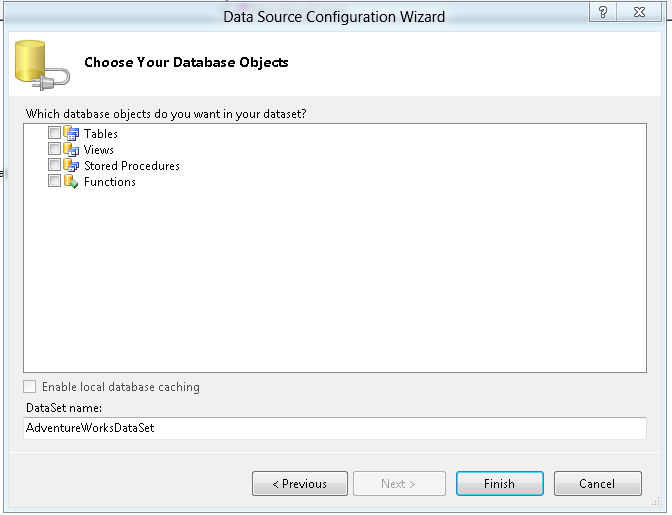
7. Click on Finish and it will create an xsd file with all the selected tables.

8. If you open the file, you will see all tables that are part of this xsd


Alternatively, you can also create an xsd file manually and drag the tables that you want on the design surface. Click on Add new file and then select an xsd file. Then drag the tables to the design surface. As you drag the tables, note the data type and relationship between the tables.


In addition to dragging the tables on the design surface, you can also add table(s) by right clicking on the design surface and then clicking on Add > New Table or create a new relationship constraint.


Using Typed Dataset

using System;
using System.Collections.Generic;
using System.Linq;
using System.Text;
using System.Data;
using System.Data.SqlClient;
namespace TypedDataSets
{
    class Program
    {
        static void Main(string[] args)
        {
            Customers customer1 = new Customers();
            //populate the dataset
            // Step 2: Specify a command (request)
            string connectionstring = System.Configuration.ConfigurationManager.
            ConnectionStrings["TypedDataSets.Properties.Settings.
            AdventureWorksConnectionString"].ToString();
            SqlConnection myConnection = new SqlConnection(connectionstring);
            myConnection.Open(); 
            SqlCommand myCommand = myConnection.CreateCommand();

            myCommand.CommandType = CommandType.Text;
            myCommand.CommandText = "SELECT TOP 10 CustomerID,TerritoryID,AccountNumber, " + 
                "CustomerType,rowguid,ModifiedDate FROM Sales.Customer";

            // now use data sets instead of data read
            SqlDataAdapter da = new SqlDataAdapter();
            da.SelectCommand = myCommand;
            da.Fill(customer1.Customer);

            Console.WriteLine("Customer ID: " + customer1.Customer[0].CustomerID);
            Console.Read();
        }
    }
}


Typed datasets allow for strong typing and allows for cleaner code, in the sense you don't have to convert data from one type to another or check for the data type before using it.

Thank you.

Friday, March 30, 2012

Using ADO.NET - Part I

In next few posts we will discuss ADO.NET object and how you can use it to connect to SQL Server database (you can connect to other databases as well, but here we will limit our discussion to SQL Server) and then work with the data. This will be a nice segway into other ways of working with data such as Entity Framework, Linq etc.

In this post we will discuss the following topics

  • Connecting to a database
  • Using SQL Command Object
  • Using Data Reader Object
ADO.NET Provides SQL Connection Object and SQL Command Object that work together to retrieve/select/update your data. 

Let's consider an example. Notice, you have to reference System.Data.SqlClient class to work with ADO.NET object.


using System;
using System.Collections.Generic;
using System.Linq;
using System.Text;
using System.Data;
using System.Data.SqlClient;

namespace ADONET2ConnectedCompact
{
    class Program
    {
        static void Main(string[] args)
        {
            // Step 1: Handshake with the database
            string connectionstring = System.Configuration.ConfigurationManager.
            ConnectionStrings["MyDBConnection"].ToString();
           SqlConnection myConnection = new SqlConnection(connectionstring);
           myConnection.Open();
           try
           {
               // Step 2: Specify a command (request)
               SqlCommand myCommand = myConnection.CreateCommand();

               myCommand.CommandType = CommandType.Text;
               myCommand.CommandText = "SELECT TOP 10 CustomerID,
               AccountNumber,CustomerType FROM Sales.Customer";
               SqlDataReader dr;

               dr = myCommand.ExecuteReader();


               // Step 3: Use the data

               while (dr.Read())
               {
                   Console.WriteLine(dr[0].ToString() + " " + dr[1] + 
                   " " + dr[2]);
               }
               Console.ReadLine();
           }
           catch (Exception ex)
           {
               Console.WriteLine("Exception{0}: ", ex.Message);
           }
           finally
           {
               myConnection.Close();
           }
            

        }
    }
}


In this example, we used inline SQL script as opposed to stored procedure. But, you can use stored procedure instead, just change the command type from CommandType.Text to CommandType.StoredProcedure. In this blog we will not be discussing SQL Server but if you would like to know more about SQL Server, checkout my SQL Blog.

We used connection string from the App.Config file to get the SQL Server, database and login information. Below is a snippet from App.Config that pertains to connection string.
<connectionStrings>
    <add name="MyDBConnection" connectionString="Data Source=HOME-PC\SQL2008;Integrated Security=true;Initial Catalog=AdventureWorks;"/>
  </connectionStrings>

Data Reader
There are couple of ways you can retrieve data from the SQL Server. Data Reader is one of them. The key characteristics of data reader are that it is connected, read only and forward only. You cannot use data reader while you are disconnected from the database or to update/insert data.

Notice the user of try / catch / finally. You want to make sure you always close your SQL connection.

There are other ways to read data namely data adapter. We will review data adapter in future post.

Thank you.