Showing posts with label ORM. Show all posts

Thursday, May 10, 2012

Linq To SQL - Part I

In previous few posts we discussed entity framework and how you can use it to model your database tables/views/stored procedures and use them in your application. We also touched on Linq to Entities (more on this later).

Today we will review Linq to SQL. Linq to SQL is another way to work with your database instead of using entity framework. Linq to SQL is good for simple applications as it only supports 1 to 1 mapping of tables, views, procedures or UDFs.

Let's look at an example.

1. I created a console app and added Linq to SQL Classes dbml object.


2. Add the tables  / views you want to generate classes for.


3. Now we will select the data from these tables using Linq to SQL.

using System;
using System.Collections.Generic;
using System.Linq;
using System.Text;
using System.Data;
namespace LinqToSQL
{
    class Program
    {
        static void Main(string[] args)
        {
            // DataContext takes a connection string 
            linqToSQLDataContext db = new linqToSQLDataContext();
            
            var customerQuery = from d in db.Customers
                                orderby d.LastName
                                select d;
            foreach (var cust in customerQuery)
            {
                Console.WriteLine("id = {0}, FirstName = {1},LastName = {2}", 
                cust.CustomerID, cust.FirstName, cust.LastName);
            }

            Console.WriteLine(Environment.NewLine);

            //getting data from multiple tables
            var CustomersAndAddresses = from c in db.Customers
                                        from o in db.CustomerAddresses
                                    select new { c.FirstName,c.LastName, 
                                    o.Address1,o.Address2,o.City,o.State };

            foreach (var cust in CustomersAndAddresses)
            {
                Console.WriteLine("Name={0}, Address = {1},City = {2}", 
                cust.FirstName + ' ' + cust.LastName, cust.Address1 + ' ' + 
                cust.Address2, cust.City);
            }
            Console.Read();

        }
    }
}


As you can see in code above, we created two Linq to SQL queries - 1st one is getting data with just one table, the other one with both tables.

You can also add a WHERE clause similar to T-SQL. For example, I can modify above query

var CustomersAndAddresses = from c in db.Customers
                                        from o in db.CustomerAddresses
                                        WHERE c.CustomerID == o.CustomerID
                                       WHERE c.CustomerID == 1
                                        select new { c.FirstName,c.LastName, o.Address1,o.Address2,o.City,o.State };

In next post we will review how you can insert, update or delete a record using Linq to SQL.

Thank you.

Thursday, May 3, 2012

Entity Framework - Using Stored Procedures

In previous post we discussed how you can use Entity Framework and use auto generated methods to perform CRUD operations. Although this may work for most simple applications, sometimes you have to have stored procedures either because database doesn't have well defined relationships and constraints or you need data dispersed in multiple tables. Similarly, you may want to use a stored procedure to insert/update multiple tables etc.

While not as straightforward as using EDM provided methods, you can still use stored procedures with entity framework. Today, we will use a SELECT stored procedure to get the results and bind it to our dropdown list just as we did in previous post.

In order to use stored procedures, first you will have to generate functions. As we reviewed in earlier post, when you generate EDM class, wizard gives you an option to select tables / views / stored procedures. Assuming you did, stored procedures are now part of the EDM class.

1. Double click on .edmx file to open it in design surface.
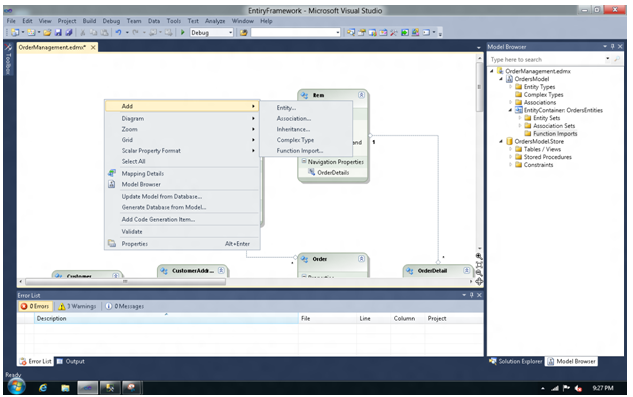
2. Right click anywhere on the surface then Add > Function Import

3. Name your function and select your stored procedure from the drop down.

4. If your stored procedure is not going to return anything (for example, inserting or updating a record) you can select None from Returns a Collection Of (None will return an integer value indicating whether script executed successfully or not). If your stored procedure is going to return a single value, you can select Scalar. But in most cases you will select Complex. If you select Complex you need to click on Get Column Information which will load all the columns returned by the stored procedure. Clicking on Create New Complex Type will create a new object where your stored proc. results will be loaded.

Now your stored procedure is wired up to be used in your code. The code below uses this stored procedure to return a collection and then we will bind this collection to drop down control.
using System;
using System.Collections.Generic;
using System.ComponentModel;
using System.Data;
using System.Drawing;
using System.Linq;
using System.Text;
using System.Windows.Forms;
using System.Data.Objects;
using System.Data.Objects.DataClasses;
namespace EntiryFramework
{
    public partial class Main3 : Form
    {
        private OrdersEntities orders;
        public Main3()
        {
            InitializeComponent();
        }

        private void Main3_Load(object sender, EventArgs e)
        {
            orders = new OrdersEntities();
            List<SelectCustomers_Result> selectCustomers;
            selectCustomers = orders.SelectCustomers().ToList();
            
            try
            {
                // Bind the ComboBox control to the query, 
                // which is executed during data binding.
                // To prevent the query from being executed multiple times during binding, 
                // it is recommended to bind controls to the result of the Execute method. 
                this.customerList.DisplayMember = "LastName";
                this.customerList.ValueMember = "CustomerID";
                this.customerList.DataSource = selectCustomers;
            }
            catch (Exception ex)
            {
                MessageBox.Show(ex.Message);
            }
        }
        
    }
}

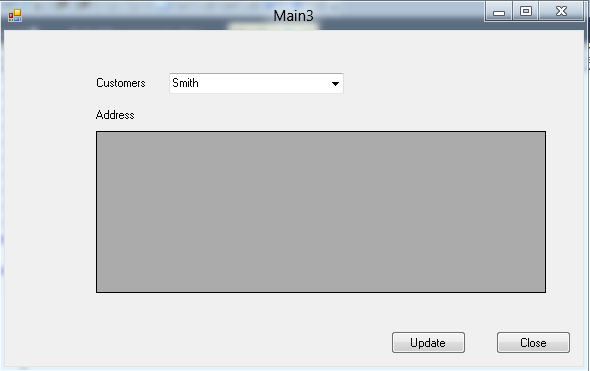
When you run the project, you will see customers loaded in the drop down list


Don't worry about the grid view below. In next post we will use stored procedure to insert a new address and update an existing address.

Thank you.